
First-run setup
In short
Open the server in a browser and the setup wizard walks you through it: create the administrator, optionally pick plugins, add a library. No tokens, no config files.
A brand-new server has no accounts and no libraries. The web app walks you through it the first time you open it.
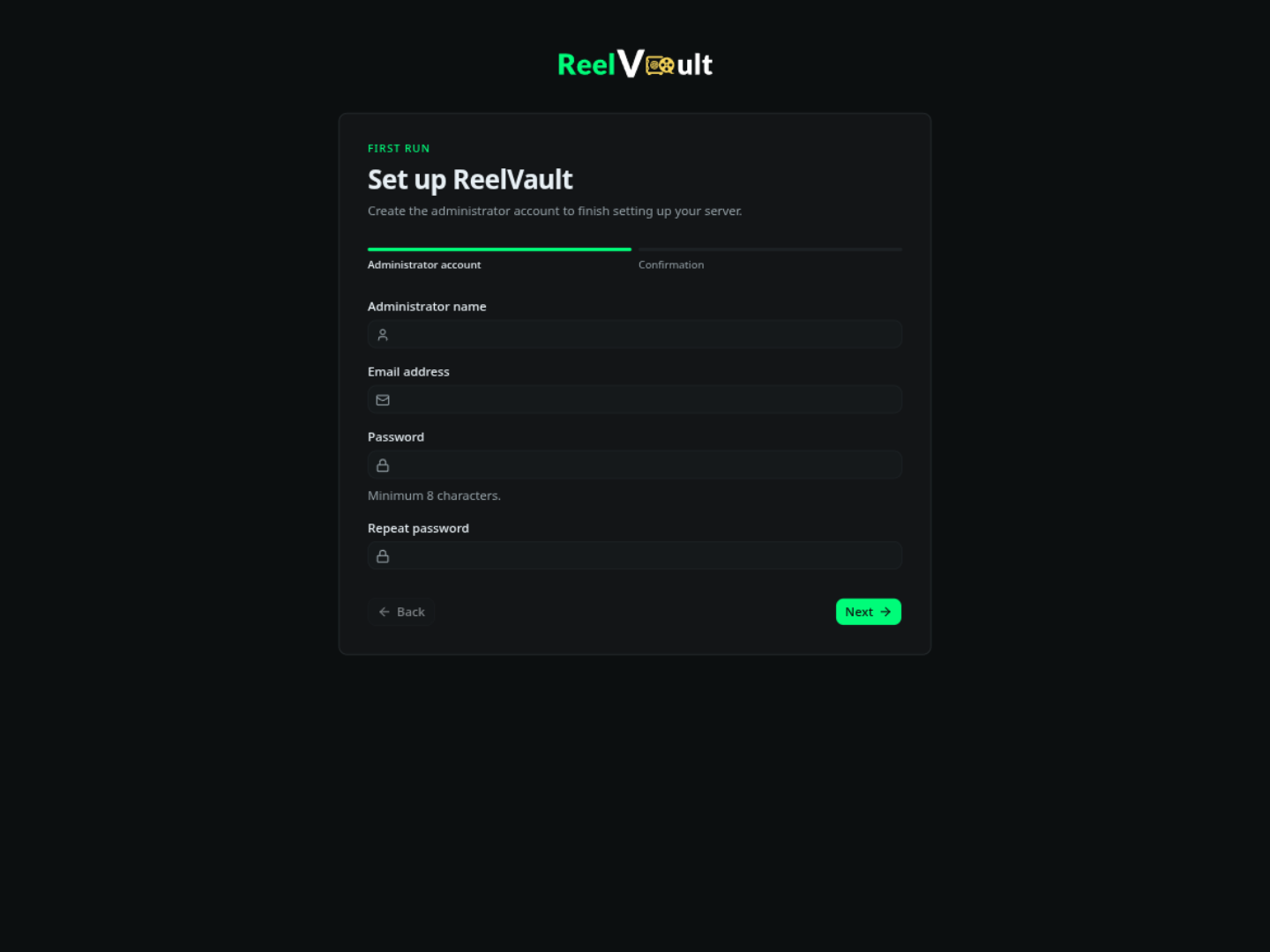
1. Create the administrator
Open http://<host>:3030 right after starting the server. While the server is unconfigured it sends you to the setup wizard:
- Enter a name, email and password for the administrator.
- Confirm.
That is it — the first account is always an administrator. Once an administrator exists, setup is closed for good.
Setup tokens (optional)
By default no token is needed — the right choice for a server that only listens on your local network. If you plan to expose a not-yet-configured server to the public internet, you can require a one-time token first:
SETUP_TOKEN_ENABLED=trueSet it before the first start (or before you delete all users to run setup again). The token is generated into $ROOT_DIR/secrets.env and printed to the log on the start that created it. The wizard then asks for it as a first step. Once your administrator exists, the token plays no further role — see Remote access & TLS.
2. Sign in
Use the email and password you just created. From the login screen you can also:
- Register additional accounts (if the server allows it).
- Pair a TV or console-style device with Quick Connect — the device shows a short code, you approve it from a signed-in device.
- Enable two-factor authentication later, from your user settings.
3. Add a playback profile
Profiles are separate viewing identities under one account — a bit like profiles on a streaming service. Each profile has its own resume points, watchlist, ratings, and audio/subtitle preferences, and can optionally be protected with a PIN.
The first profile is created for you during setup; add more from Admin → Users, or switch between them from the profile menu. Devices remember which profile was last used.
4. Point it at your media
Everything else starts in the admin panel. The next step is Adding your media — add the folders that hold your movies and shows.
What next?
- Adding your media — the folders ReelVault should watch.
- Web & desktop clients — connect more devices.
- Installing plugins — add metadata sources and other extras.