
Adding your media
In short
A library is one or more folders of one type: movies or TV shows. Create it in Admin → Libraries, then press Scan library. Titles appear as the scan finds them.
Make one library for movies and one for TV shows. ReelVault reads them differently, so keep them apart.
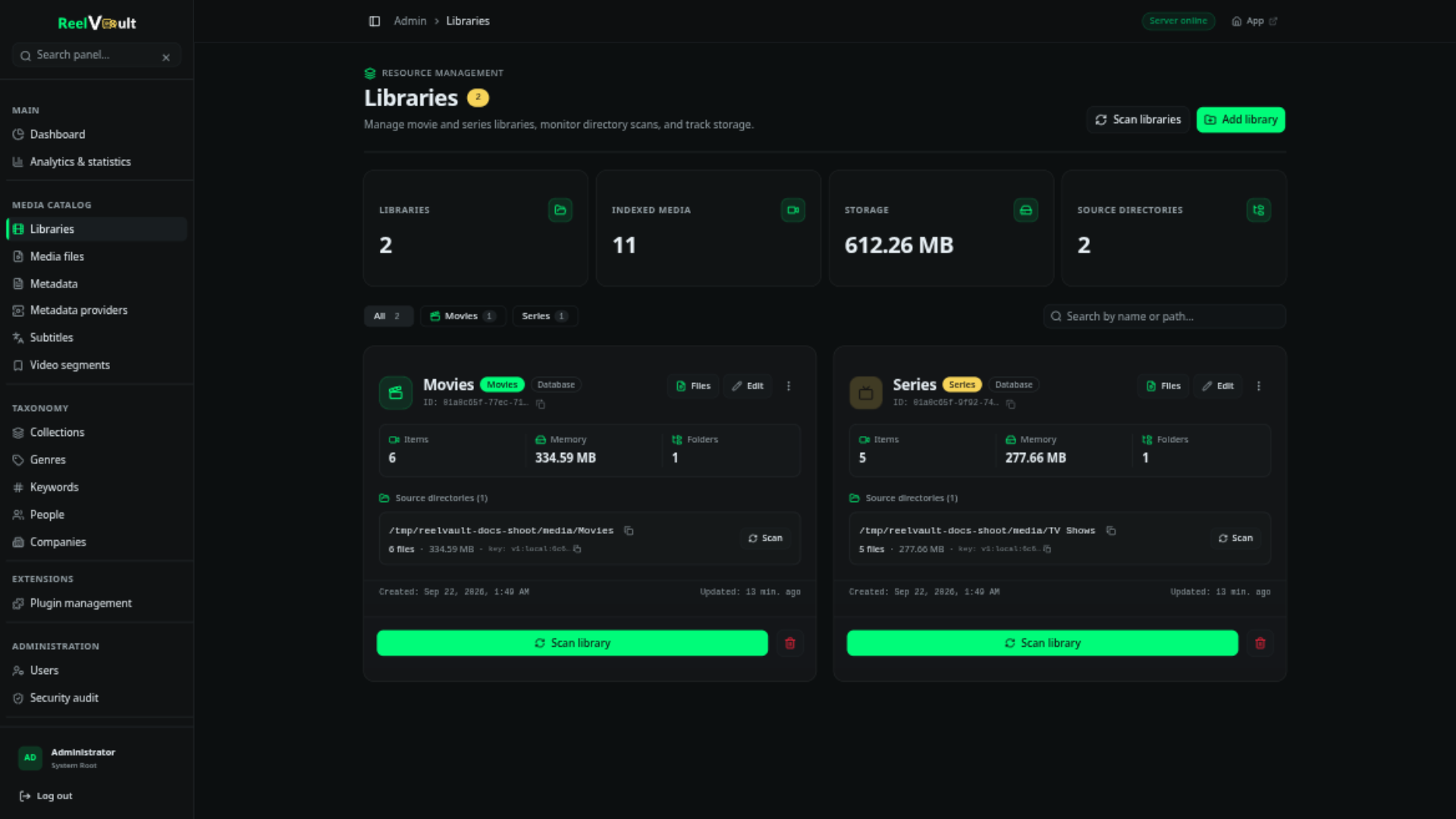
Create a library
- Choose Add library, give it a name and pick a type: Movies or TV shows.
- Add one or more source folders. A network drive works, as long as the server can read it.
- Optional: choose the metadata language and the order of metadata providers.
- Save, then press Scan library.
Library: Movies
  /srv/media/movies
  /mnt/nas/films-2000s
Posters and descriptions need a metadata plugin
ReelVault finds your files without a plugin, but it fills in posters and descriptions only through a metadata provider. Install TMDB or OMDb first. See Artwork & descriptions.
Name your files
Good file names matter more than anything else. A title and a year for movies, and S01E01 for episodes, is enough. See Naming your media.
Scan progress
While a scan runs, its library card shows the progress as a percentage. The percentage appears once the scan starts passing files to its queues. Before that, the button says the scan is queued.
Needs attention
Some files cannot be matched: the name is unclear, the type is wrong, or no provider knows the title. These files appear under Needs attention on the library card.
On the findings page, for each file you can:
- Find candidates. ReelVault searches your metadata providers for the title in the file name. The search runs only when you press the button.
- Ignore a file you do not want. It stays off the list, even after later scans.
- Restore an ignored file from the Ignored tab.
After you rename or move files, press Scan library again.
Automatic scans
With the automatic watcher on, ReelVault notices new files without a manual scan. You can turn it on or off in the admin settings, under the scanning.autoWatcherEnabled key.
Advanced: write metadata next to your files
For administrators
Most people can skip this section. Use it only when another media server, such as Kodi or Jellyfin, needs to read the same metadata.
By default, ReelVault keeps all metadata in its own database, and your media folders are never written to. Each library also has a sidecar format, which decides the names of the metadata files ReelVault reads and writes:
| Format | File names |
|---|---|
reelvault (default) | movie.reelvault.nfo, tvshow.reelvault.nfo |
kodi | movie.nfo, tvshow.nfo, seasonNN.nfo |
Writing metadata files means writing into your media folders. Keep the folders read-only if you do not want that.
ReelVault also reads existing .nfo files next to your media when it scans them.
Next steps
- Naming your media: the patterns that match best.
- Artwork & descriptions: fix a wrong match.
- Background jobs: see what a scan is doing.