
Playback & quality
In short
You never pick "direct play" or "transcode" yourself. The server compares the file with what your device can handle and picks the cheapest option. You just press play.
When playback starts, the server compares the file with what the client can handle and picks the cheapest option:
| Decision | When it is used | Cost |
|---|---|---|
| Direct play | The device understands the video and audio as-is | None — the file is streamed byte for byte |
| Remux | Tracks are fine, but the file wrapper is not | Copy the tracks into a stream; no re-encoding |
| Transcode | The device cannot play the video or audio | Re-encode on the fly; the heaviest option |
Converting is heavy, so a device that can play a file directly always gets the untouched file.
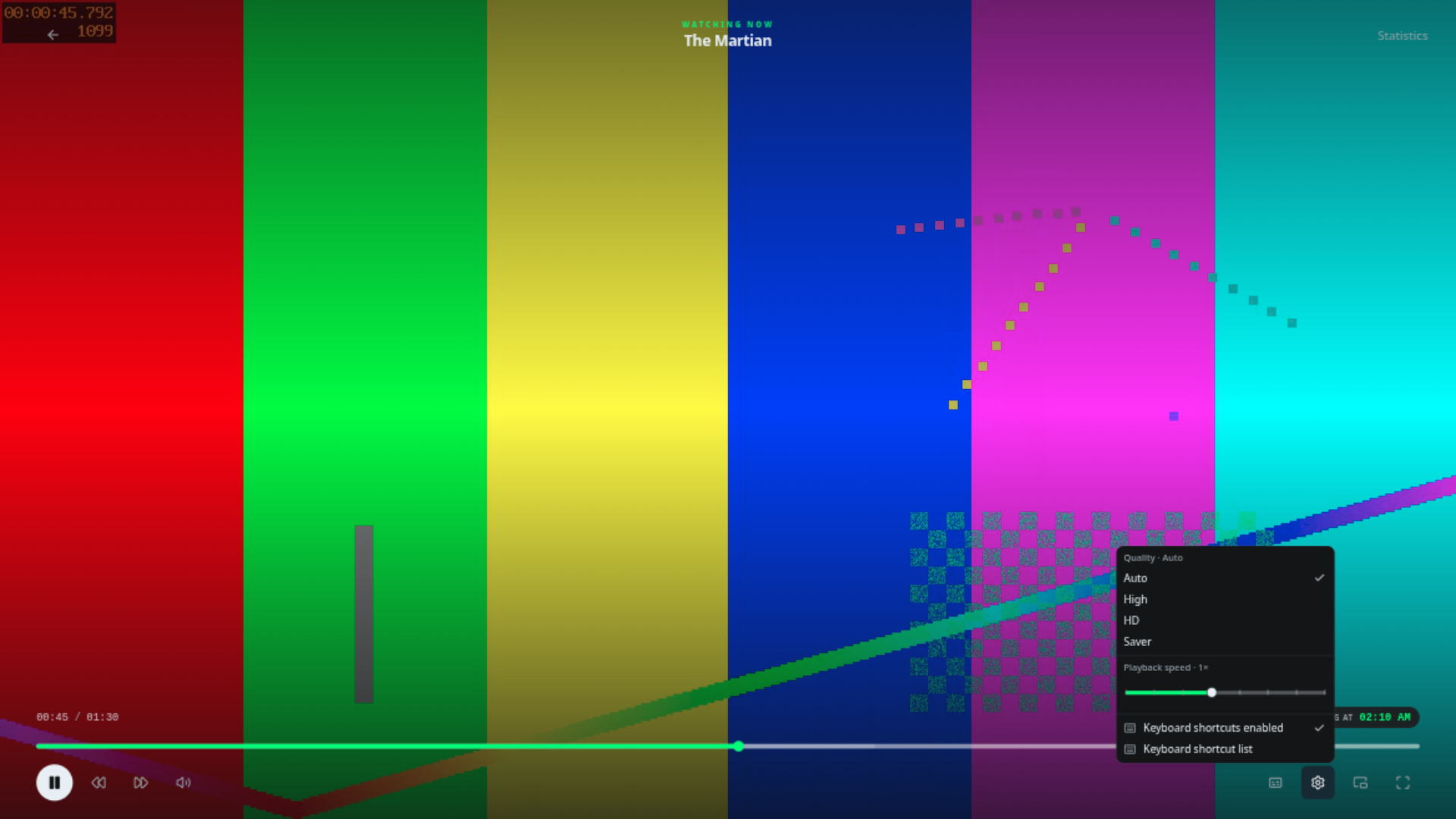
The controls you use
- Quality — pick a lower quality if your connection is slow; the server will convert down to it.
- Audio & subtitles — switch tracks from the player. External subtitle files next to the media are picked up during scanning, and subtitle provider plugins can fetch more from the title page.
- Resume — playback position is remembered per profile, so you can start on the TV and finish on your phone.
- Markers — intro, credits and recap markers appear on the timeline so you can skip them.
- Remote control — a session started on one device can be paused, seeked or stopped from another.
Checking what the server decided
The player's Statistics panel spells out the decision and why — handy when something looks off:
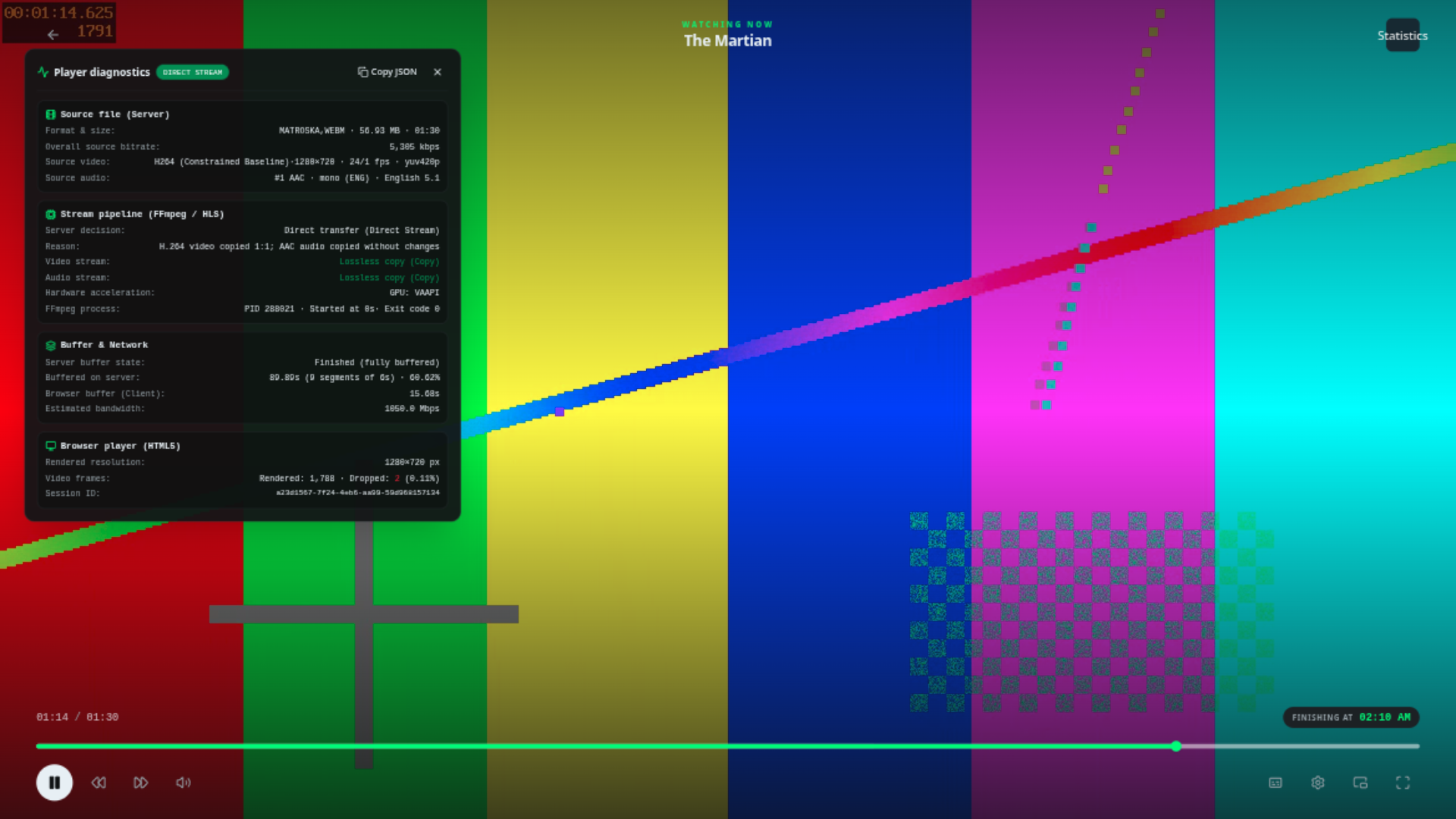
If it is transcoding when you think it should not, or the picture stutters, see Troubleshooting. Administrators can tune the machine itself in Transcoding & hardware.
Next steps
- Users & profiles — separate viewing identities.
- Troubleshooting — when playback misbehaves.
- Transcoding & hardware — for administrators.