
Web & desktop clients
In short
Open the server's address in any modern browser and you are watching. There is also a desktop app built from the same code, and the web app installs to a phone home screen. A dedicated mobile app is not available yet, but is planned.
ReelVault's client is one app that ships two ways: a page you open in a browser, and a desktop app built from the same code with Tauri.
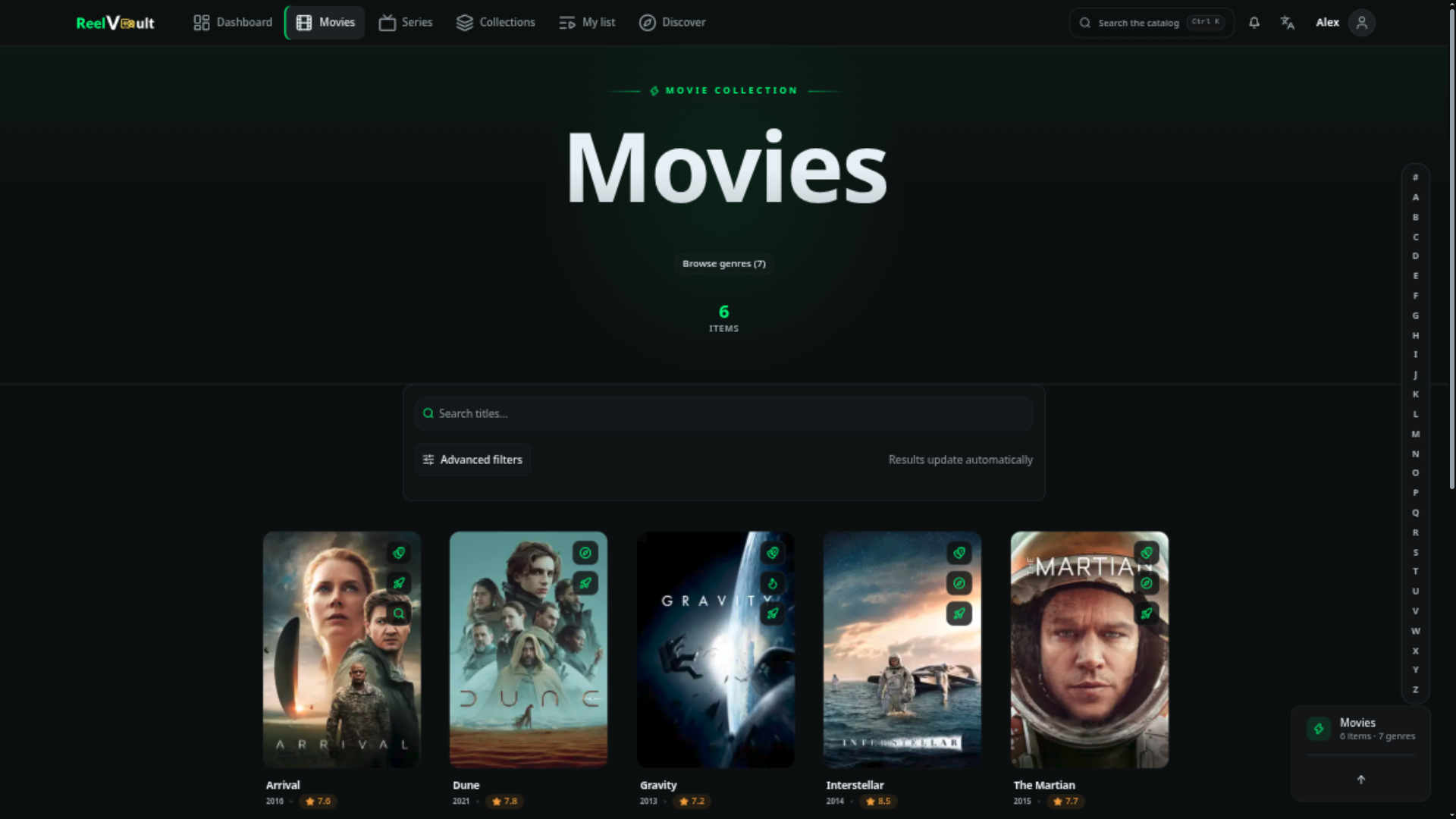
Browser
The server serves the web app itself — open the address the server is on (by default http://<host>:3030) and you get both the app and the API from the same place. Any current Chrome, Edge, Firefox or Safari works.
Because the app ships a web manifest, you can install it as an app from the browser menu — it opens in its own window, with its own icon and no browser chrome. On a phone this is the closest thing to a native app today; a dedicated mobile app is planned but not released yet.
When you open the client from another device on the same network, it automatically talks to the server it was served from, so http://reelvault.lan:3030 or http://192.168.1.20:3030 just works. (Only if you host the app and the API on different addresses — an advanced setup — do you need extra configuration; see the website README.)
Desktop app
The desktop app wraps the same interface in a native window. On first launch you enter the server address on the login screen; after that it remembers it. The server accepts the desktop app automatically, so there is nothing to configure.
Watching away from home
By default the server only listens on your local network, so it works at home but not from elsewhere. The simplest safe way to watch on the road is a VPN such as Tailscale or WireGuard: it puts your phone or laptop on the same private network as the server, with nothing exposed to the public internet.
If you would rather publish the server on the internet (a real domain, HTTPS), that is an administrator task — see Remote access & TLS. Do it only after first-run setup is complete.
Finding your way around
- Dashboard — continue watching, recently added, and per-profile recommendations.
- Movies and Series — the full library, with sorting and filters.
- Discover — curated feeds (trending, popular, upcoming…) from the metadata providers you have enabled.
- Search — finds titles and people in your library; if a plugin provides search (for example Media Requests), it also searches outside your library.
- Collections, Genres, Keywords, Companies, People — browse by any of those.
- Watchlist — save titles for later.
Watching
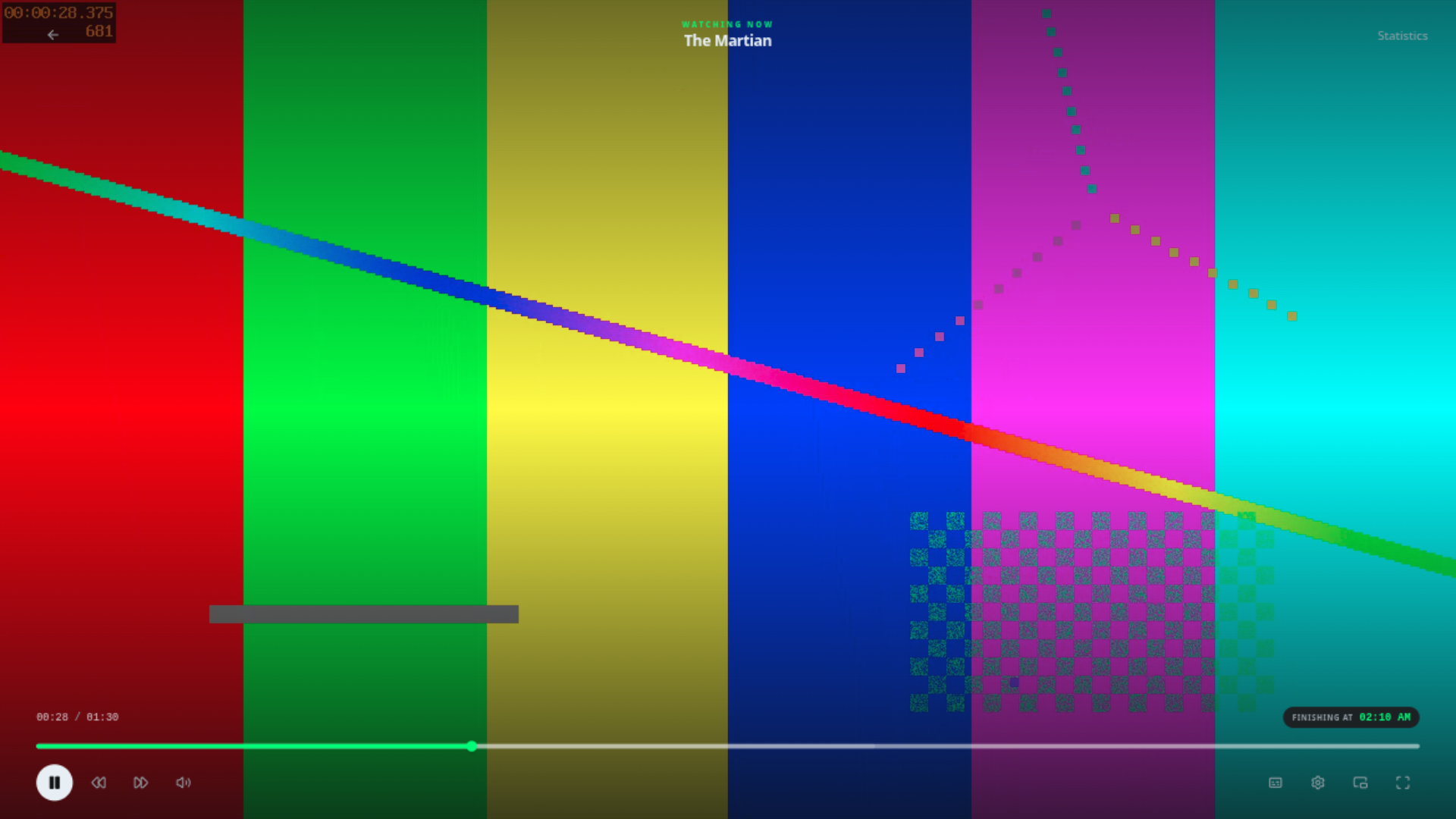
- Resume — playback position is stored per profile, so you can start on the TV and finish on your phone.
- Quality — you do not choose direct play or transcode; the server picks the best option for the device and file, and converts only when it has to. See Playback & quality.
- Audio & subtitles — switch tracks from the player; the server remembers your choice per profile.
- Markers — intro, credits and recap markers show up on the timeline so you can skip them.
- Remote control — a session started on one device can be paused, seeked or stopped from another.
- Offline downloads — where the server allows it, prepare a copy for offline playback.
Your account
The user menu (top right) holds:
- Settings — interface language, theme, and playback preferences.
- Devices & sessions — every signed-in session, with the ability to revoke any of them.
- Notifications — server and plugin notifications.
- History and Insights — what you have watched and your viewing stats.
- Remote — save the server address for the desktop app / bookmarking.
- Two-factor authentication — TOTP and backup codes.
Next steps
- Playback & quality — quality, subtitles and resume.
- Users & profiles — accounts for a household.
- Remote access & TLS — for administrators who want internet access.