
Installing plugins
In short
Plugins are add-ons: metadata sources (TMDB, OMDb), subtitles, media requests, webhooks, extra pages. Browse and install them from Admin → Plugins → Available. No restart needed.
Plugins add the source-specific parts of ReelVault. You manage all of them in Admin → Plugins.
Plugins are code
They run inside the server process and get the same access the server has. Only install plugins from sources you trust, and read the capabilities shown in the install confirmation.
What is installed
The Installed tab lists every plugin the server found, with its version, state and any load error.
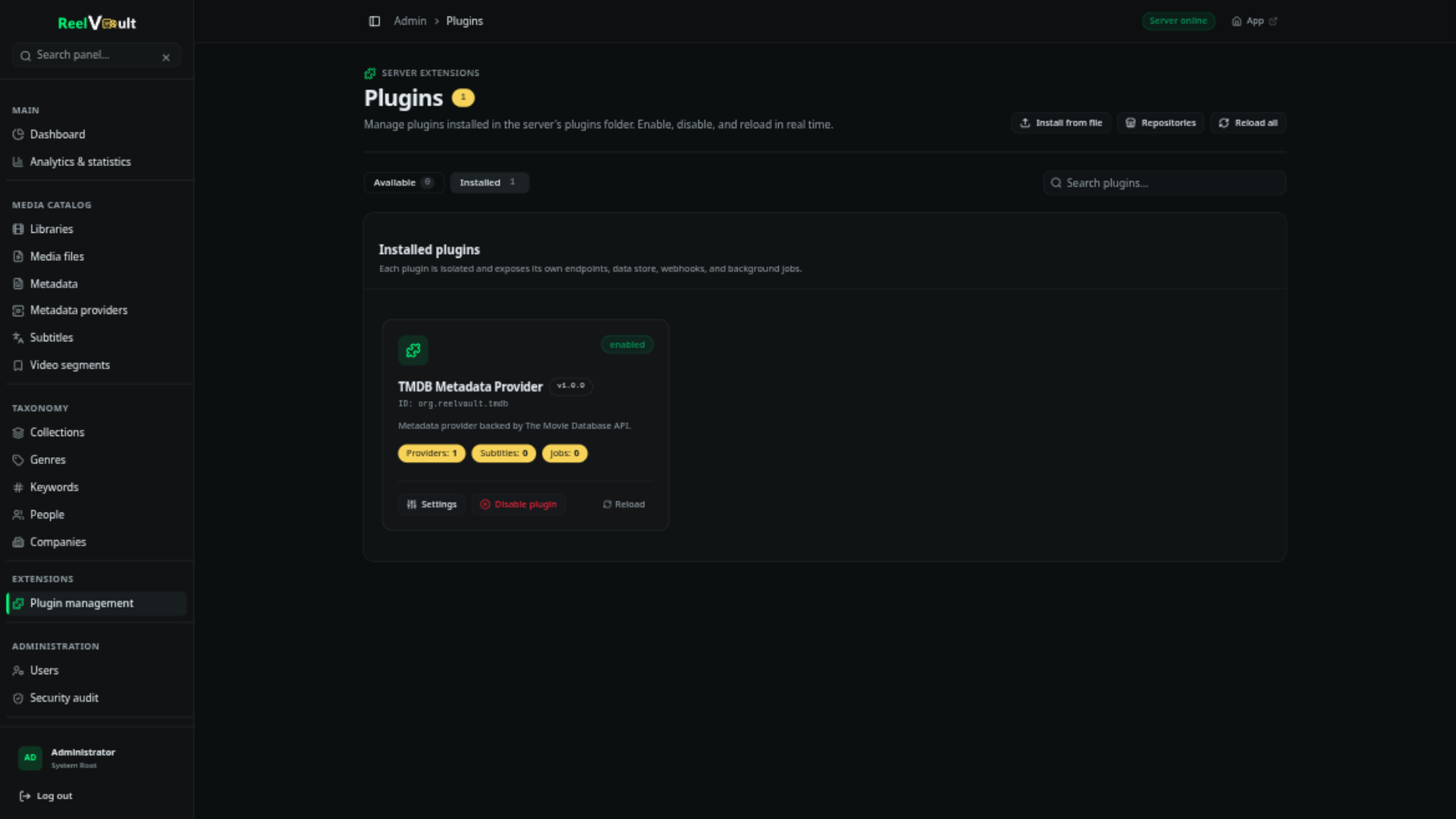
From a plugin's page you can:
- Enable / disable it. Disabling unloads its backend and removes its interface additions without deleting anything.
- Reload it — useful while developing.
- Configure it, when it declares settings (API keys, endpoints, thresholds…). Saving a config reloads the plugin.
- Uninstall it, for plugins installed through a catalog or an uploaded archive. This removes the plugin directory and its stored data.
Plugins can also add their own admin pages, which show up in the sidebar under a plugin group.
Installing from a catalog
Available shows plugins from the catalog repositories the server knows. A fresh server already points at the official plugins catalog.
- Find a plugin and open it.
- Review the description, version, and the capabilities it asks for.
- Install. The server downloads the archive, verifies it, unpacks it and loads it — no restart.
There are no "partially trusted" plugins: a capability decides which parts of the server a plugin can reach.
Updates and rollback
An installed plugin whose catalog offers a newer release is marked update available — installing it replaces the current copy and reloads it. Opening a plugin also shows its revision history: every release the catalog still hosts, newest first, each installable. Installing an older version from that list is the rollback path — the server keeps only the installed copy on disk, so rollbacks come from the catalog, not from a local backup.
Repositories
Repositories manage where catalogs come from. Each entry is a URL serving a reelvault-catalog.json.
- Add your own catalog URL.
- Refresh re-fetches a manifest immediately.
- Private repositories — attach an access token; it is encrypted at rest and never returned by the API.
To publish your own catalog, see Publishing & catalogs.
Installing an uploaded archive
For a plugin you built or downloaded as a .zip, .tar or .tar.gz, use Upload. An upload has no catalog checksum, so the server validates the manifest and the unpacked layout instead. Uploaded plugins land in the plugins folder but stay unloaded until you press Reload all (or restart the server).
If a plugin fails to load
The Installed list shows the failure phase and the error. The usual causes are a capability the plugin uses but did not declare, a manifest that fails validation, or a missing entry file. The plugin is left disabled rather than crashing the server; fix it and reload.
Best plugins to start with
- TMDB and OMDb — metadata, so titles get artwork and descriptions.
- Media Requests — let users ask for titles that are not in the library yet.
- Webhooks — send events to Discord, Telegram or your own endpoint.
See Bundled plugins for the full first-party set.
Next steps
- Artwork & descriptions — put those metadata providers to work.
- Background jobs — the work plugins can schedule.
- Manifest & capabilities — for plugin authors.