
Transcoding & hardware
For server administrators
This page is about the machine doing the work. If you only watch, you never need it — the server picks the right playback method on its own. See Playback & quality for the viewer's side.
When a device cannot play a file as-is, the server converts it on the fly. That is the only heavy thing ReelVault does, so it is worth giving it the right hardware and sensible limits.
Hardware acceleration
If your machine has a GPU that can encode video, the server uses it for transcodes:
- Intel — Quick Sync (QSV)
- NVIDIA — NVENC
- AMD — AMF / VA-API
- Apple — VideoToolbox
Detection happens per encoder and is verified with a test encode, so an advertised-but-broken encoder does not silently produce garbage. If hardware fails mid-stream, the session falls back to software once.
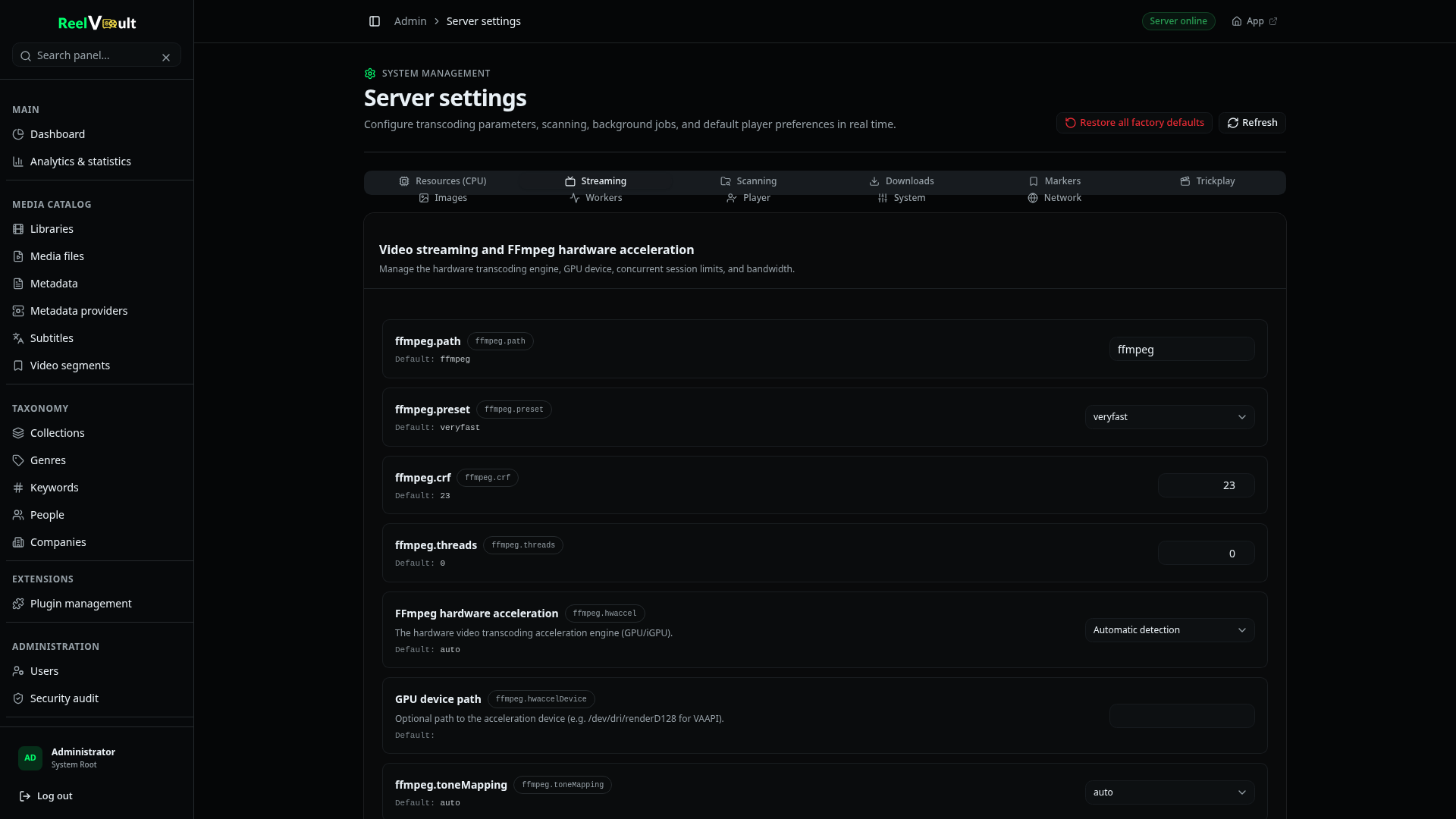
Relevant settings in Admin → Server settings → Streaming:
ffmpeg.hwaccel—auto, a specific engine, ornoneto force software.ffmpeg.hwaccelDevice— which device to use when you have more than one GPU.- Encoder preset and CRF — the quality/speed trade-off. Leave
ffmpeg.presetonveryfastunless you know you want otherwise.
Admin → System resources shows ffmpeg capabilities and lets you refresh the detection after a driver change.
HDR and tone-mapping
The server detects HDR10, Dolby Vision and HLG. HDR sources always transcode, because the output is an SDR stream; tone-mapping converts the colours (tonemapx / zscale, configurable in ffmpeg.toneMapping). If everything you own is SDR, you can ignore this entirely.
Sessions and limits
Every playback is a session that ties a viewer to a file and a pipeline. Admins can watch and terminate live sessions from the dashboard.
Settings that cap them:
stream.maxSessions— total concurrent streams.stream.maxSessionsPerUser— per account.stream.maxPerStreamBandwidthKbps— optional per-stream bandwidth ceiling.stream.inactivityTimeoutMs— how long a stalled session is kept before it is reaped.
Temporary transcode files live under $ROOT_DIR/transcodes and are cleaned up when a session ends and on boot.
Trickplay
Trickplay generates thumbnail sprites so the player shows previews while you scrub. Turn it on per title or across the library in Admin → Trickplay; generation runs as background workers and takes a while for a large library.
Getting more out of a small machine
If the picture stutters or the CPU is pinned:
- Enable hardware acceleration if your machine supports it.
- Use a faster preset (
ultrafast,superfast) or cap the transcode resolution. - Lower worker concurrency so background jobs do not compete with playback — the server also pauses background work automatically under sustained pressure. See Background jobs.
- Avoid transcoding when possible: a client that direct-plays costs almost nothing.
Next steps
- Playback & quality — the viewer's side.
- Diagnostics & logs — check ffmpeg capabilities and resource pressure.
- Server configuration — the full settings list.