
Troubleshooting
In short
Most problems come down to ffmpeg, the network address, or a plugin using a capability it did not declare. Find the matching symptom below.
I cannot reach the app from another device
- If it works on the server itself but not elsewhere, the server is probably listening only on the machine. See On the local network.
- Check the firewall on the host machine.
- If sign-in appears to succeed but you are sent back to the login, the address or HTTPS setting is probably wrong — see Remote access & TLS.
A file or series is missing
- Run a scan on the library from Admin → Libraries.
- Check that the server can read the path — network drives and permission errors are the usual cause.
- Look at Admin → Media files for the file's status. Files the server skipped on purpose (samples, extras, hidden files) are listed as ignored assets and can be un-ignored.
- Very unusual file types may have to be converted outside ReelVault first.
Metadata is wrong or missing
- Make sure at least one metadata provider is installed and enabled in Admin → Plugins.
- Check the provider order in Admin → Metadata providers — the higher-priority provider wins conflicts.
- Fix a specific title with Rematch (or Identify on the media file).
- Still wrong? Refresh metadata to re-import. See Artwork & descriptions.
Playback converts when it should not
Open Live activity and look at the session's decision:
- Device support — the client may not be able to play this format. A different client (or the desktop app) may play the same file untouched.
- Bandwidth —
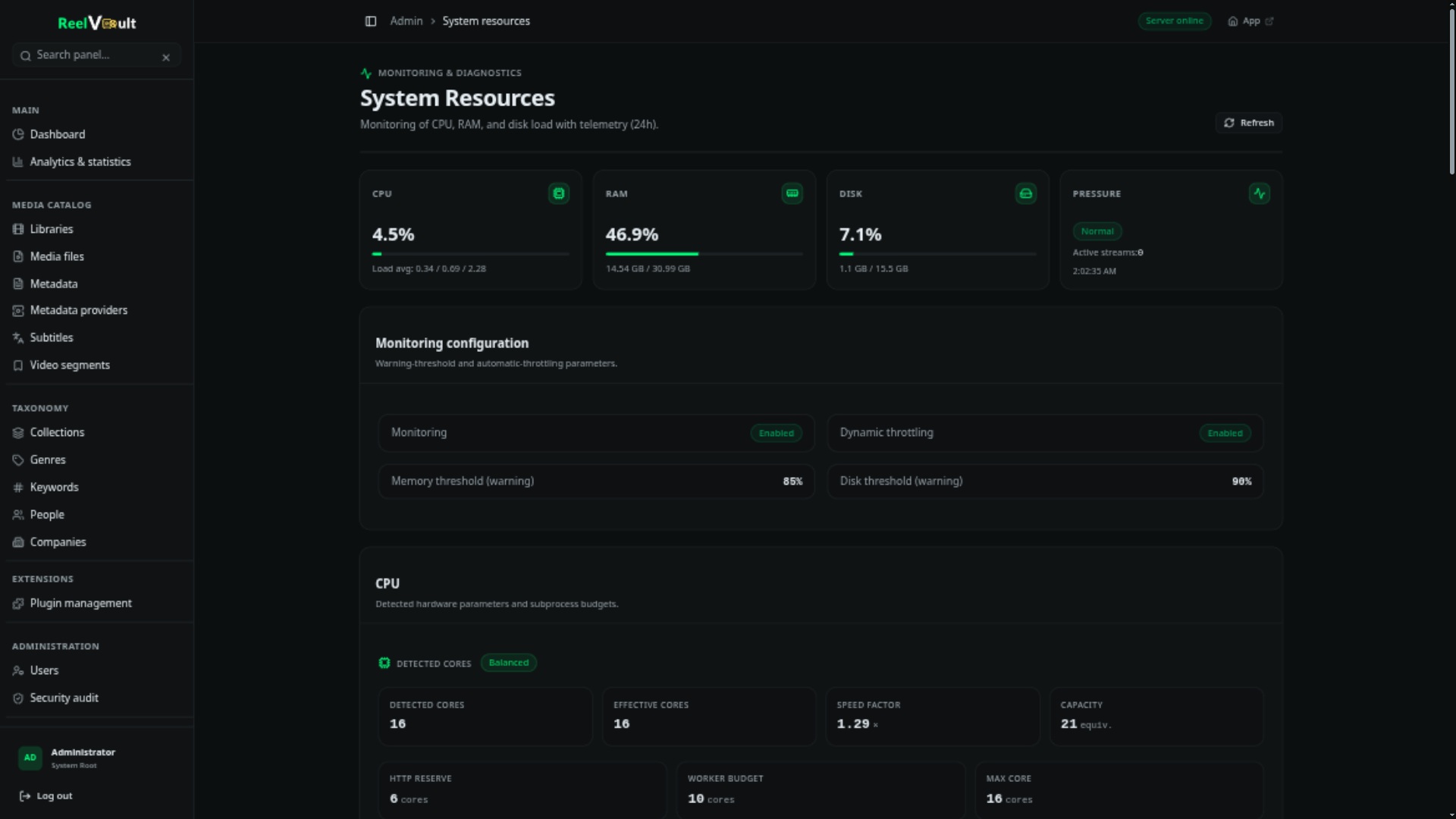
stream.maxPerStreamBandwidthKbpscaps the stream; raise it or set it to0. - Hardware acceleration — check Admin → System resources → ffmpeg capabilities. If your GPU was not detected, this runs on the CPU. Re-run detection after driver changes, or set
ffmpeg.hwaccelexplicitly. - HDR — HDR sources always convert for SDR screens. That is expected.
The picture stutters or the CPU is pinned
A software conversion is the usual answer. In order of effect:
- Enable hardware acceleration if your machine supports it — see Transcoding & hardware.
- Use a faster preset (
ultrafast,superfast) or cap the conversion resolution. - Lower worker concurrency so background jobs do not compete with playback — the server also pauses background work automatically under sustained pressure.
- Avoid converting when possible: a client that plays the file directly costs almost nothing.
A plugin will not load
The Installed list shows the failure phase and reason. The three usual causes:
- it uses features it did not declare under
capabilities; - its declared capability or version range does not match the server;
- the
entryfile is missing or failed to import.
A broken plugin does not take the server down — it stays disabled. Fix it and reload.
For administrators
The rest of this page assumes access to the server
The steps below involve the machine, not the app. If you do not look after the server, hand this section to whoever does.
The server exits immediately
It is almost always ffmpeg. The server checks for ffmpeg and ffprobe at startup and refuses to run without them.
- The installers and images provide them — re-run the installer, or install ffmpeg and make sure it is on the
PATH, or - set
ffmpeg.pathandffprobe.pathin Admin → Server settings (or via the environment) to their full paths.
Other common causes: the port is already in use, or ROOT_DIR is not writable by the user running the server.
The port is taken (or I want a different one)
Restart with a different port: docker compose — change the published port mapping; installers — install.sh --port 8080 / install.ps1 -Port 8080; archives and services — set APP_PORT in settings.env, or %HERE%\settings.cmd on Windows.
Reporting a bug
Grab the request id from the error (or the failing log line) and the relevant section of Admin → Server logs, then open an issue on the matching repository:
- Server, API, conversion → reelvault
- Web or desktop client → website
- A bundled plugin → plugins
- This documentation → reelvault.org